
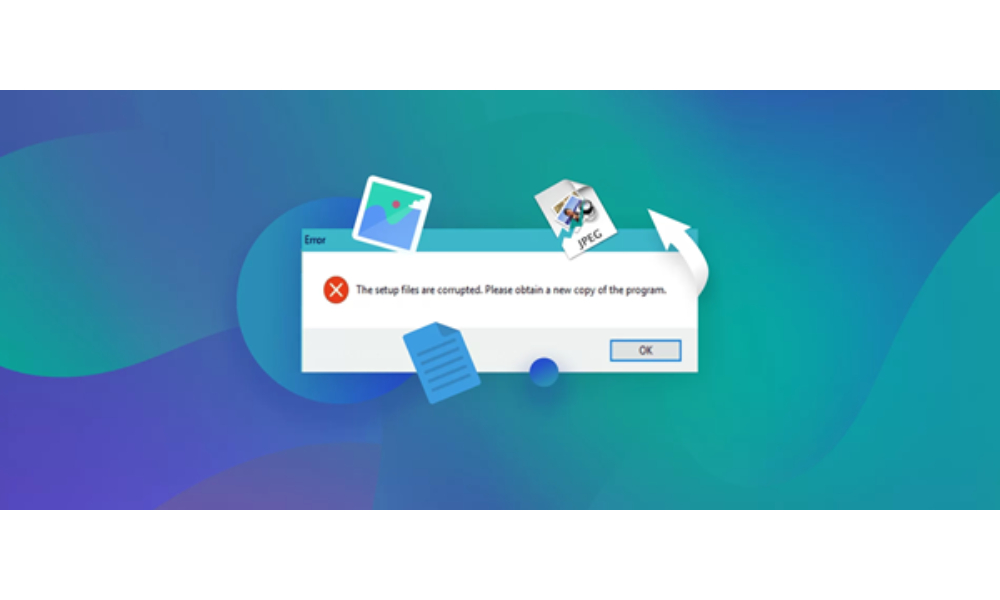
Have you ever tried to open a file on your PC only to see a strange error appear on your screen? It means, the file is corrupted and you can no longer access it.
File corruption is more common than people think, and it can happen for many reasons like faulty storage drives, power outages, sudden system crashes, or malware attacks. Corrupt files can lead to data loss and create a frustrating situation, but you can overcome it by using the right corrupted file recovery solution.
Corrupted files appear normal at first glance, but the problems start when you try to use them. In this guide, we will tell you how to identify corrupted files on your computer.
Error Messages
When you try to open a corrupt file, you see an error message appear on the screen. These messages vary depending on the type of file or software you are using. For example, you may see:
- The file is corrupt and cannot be opened.
- The file is corrupted and unreadable.
If you see these types of error messages, it means the file’s internal structure is damaged or modified in a way that makes it inaccessible.
Unusual System Behaviour
If your PC freezes or crashes whenever you try to open a certain file, it is a sign of corruption. In some cases, your system slows down when you try to access or edit specific files.
Even missing content inside documents, spreadsheets, or videos is a sign of file corruption. If you experience these issues frequently with the same file, it’s because it is damaged.
Use Built-in Windows Tools
Windows has helpful tools that help you to check and fix file corruption. For instance, you can use the System File Checker (SFC) to scan for and repair corrupted files in your system.
Another tool to use is Check Disk (CHKDSK), which is helpful in detecting hard drive errors and preventing your files from getting corrupted.
Corrupted files can cause serious problems if you are left unaddressed. By recognising the early signs, you can take quick action to resolve the issue. Backing up your files regularly is the best way to avoid the stress of dealing with corruption.
 Evaluation Tech